Archive | February, 2010

Record Review: James Keyes – Ruminations

I get a lot of music submissions, in the hopes that I’ll review the record here or at GoodSongs.Com (which is now here also).  Assuming a submission is reasonably targeted to my taste, I listen to at least part of it, though I am horribly backed up at the moment.
image

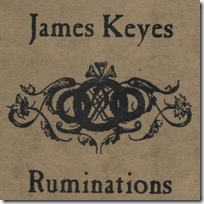
Tonight I received a copy of James Keyes’ new record Ruminations (purchase at CD Baby).  Something- I can’t say what exactly- made me queue up the record right away, while I was working on something else.

Man, am I glad I did.  This is good stuff.  Sort of a gritty, but melodic alternative country sound, at least at the start.  It reminds me a little of the Hangdogs, which is high praise.  But that’s not a perfect description either.  It’s alt. folk, with a little rust around the edges. Or something like that.

It’s the kind of music you want to listen to on the back porch, with a bottle of Maker’s Mark in your hand and a good dog at your feet.

And it has range.  Maybe too much range for some, but it spans several of my genres.

Hardliner starts off with an Uncle Tupeloish guitar riff and then blends into a Clarence White vibe that I really, really dig.  Two Mirror keeps to the alt. country path, with guitar and harmonica, and a sad story and a subtly upbeat sound.  The arrangements on this record are consistently excellent.

It’s All Easy is a gritty folk blues number, that channels good, cosmic Ray Wylie Hubbard.  I wondered about the Tom Waits comparison I read somewhere until I heard Dream Endless and Work Song.  Either would sound right at home on Heart of Saturday Night.  Back when Tom was making great music.  And not just random noise, but I digress.

Things take a definite turn off the alt. county path in the middle of the record, with more of a driving, bluesy folk sound.  More Son Seals than Son Volt, but that’s OK.

There are still some alt. country moments to be had, though, as James turns in a rocking Slobberbone sound on SSG.

This one will make the jump to a CD-R so I can listen in my truck, along with the vintage Charlie Daniels and bootleg Drive-by Truckers that are already in my CD player.  That’s pretty good company.

Rancho Review Ratings:
(5 point scale)

Music: 4
Lyrics: 3.5
Consistency: 3
Artwork: 3
Overall: 3.25
Purchase: @ CD Baby

image

  • Share/Bookmark
Read full story View Comments

How to Create a Life Stream Page on Your Blog, With Posterous

We’re really rocking the blog development lately.  Yesterday, I showed you how to point a domain to one of your blog categories.

Today, we’re going to create a life stream page, on your blog, using Posterous.

You can use the life stream page we’re about to create for just about anything.  You could send all of your life stream content there, autopost it to Twitter, Facebook, etc. and end up with a great, chronological and searchable archive of all of your content.  I have Twitter already integrated into Newsome.Org, via the widget in the right hand column, so I’m going to do something a little different.

I want to create a page where I can automatically upload and share impromptu iPhone photos, and maybe some other tidbits from time to time.  Notwithstanding the limited chops of the iPhone camera, I find a lot of iPhone photos really compelling, partially because of those limitations.  Plus I almost always have my iPhone with me.

image

But, as part of my ongoing content consolidation and simplification project, I want my iPhone photo stream to be available here, as a Page.

Let’s get started.

Get a a Posterous Page

If you don’t already have a Posterous page, go sign up.  Learn how to use it- it’s about as easy as it could possibly be.  Theme your Posterous page to have the same look and feel as your blog.  You’ll probably have to start with a canned theme and then customize it to your liking.

image

Make a Content Plan

Next, decide how you’re going to use your life stream page.  Posterous makes it really easy to autopost content to the social networks and other sites.  With a little work you can make Posterous your content hub and control panel.

Get Any Ancillary Apps You’ll Need

As noted, I want to use my page primarily as a place to upload and share impromptu iPhone photos.  A great way to do this is via the iPhone app PicPosterous (iTunes link).  It will make sharing iPhone photos via Posterous easy and almost completely automated.

I’m not crazy about the way it forces you do use albums, but it works OK.  I do like the fact that photos from each album are posted together.  I’ll just do an album for each day.  That seems burdensome, but it’s not really.  You’d need to name the photo anyway, and this means you only have to name the first one (e.g., 02/28/10) you post each day.  Any others can be sent directly to that album.

Embed into a Blog Page with an iFrame

Now to embed the Posterous page you have crated into your blog via an iFrame.

In WordPress

I use WordPress.  Here’s how you do it with my theme.  The process may differ slightly from theme to theme, but the basic concepts should be the same.

Create a new Page, and name it.  I called mine iStream.

If you have columns on your main blog pages, you’ll probably need to use a full width template for this page.  Many WordPress themes have this option for Pages.  If yours doesn’t, you’ll have to create a Page template.  Or change themes.

Add the iFrame code.  Here’s mine:

image

In Blogger

If you use Blogger, simply create a new Page, via Posting>Edit Pages>New Page, and include the iFrame code.  Be sure to select the Edit HTML tab first.

I don’t know that many, if any, Blogger templates have full width templates available for Pages.  If not, the resulting life stream Page may require horizontal scrolling, which is not good.  If I find (or someone provides in a comment) a solution for this, I’ll add it here.

The best bet if you really want a life stream page in Blogger might be to select a wide, one or two column template.

Add the New Page to Your Page Navigation

Once I created my new Page, I added it under the Media tab at the top of the Newsome.Org blog pages.

That’s all there is to it.  Looks great.  Easy to use.  Consolidated.

I like it.

Brother, Can You Spare a Word?

I’m working hard so you don’t have to.  If you like what I’m doing here at Newsome.Org, please spread the word via Retweets and links.

  • Share/Bookmark
Read full story View Comments

How to Point a Domain to a Blog Category

One of my long-time and oft-stated problems with all of the so-called social networks is the brand and attention dilution that occurs when content producers cast their content across numerous networks, sending readers on a wild goose chase as they try to keep up with everything.  While I’ve done a lot better than most when it comes to keeping my content centered around my web site (Newsome.Org), I too have been lured into spreading myself too thin, network-wise.

I’m going to fix that.  I am in the process of consolidating most of my content and much of my applications.  When all is said and done, I will be a power user of this blog and a small number of ancillary networks (maybe as few as two: Twitter and Facebook).  Additionally, I intend to shrink my cloud toolbox down to a manageable size.  More on that later.

Today I want to take the first step, which is to consolidate our music recommendation blog, which was previously hosted at Tumblr, into Newsome.Org.  Specifically, I want that content to be included here- under the Music category.  But I want to continue to use the cool and valuable top level domain (GoodSongs.Com) that I have been using for song recommendations.

Here’s how that can be done.

What You’ll Need

To have this need and to make this work, you’ll need a blog platform that includes categories, tags or some other naming convention that has a URL.  I use WordPress, and I have a Music category (see the menu at the top of the page).  The URL for that category is http://www.newsome.org/category/music.

You’ll also need a domain (or a sub-domain) separate from the one that you use for your blog, that you want to point to the category.  As noted above, I am going to cause GoodSongs.Com, which previously pointed to a custom domain at Tumblr, to be redirected to my Music category here.

Use a Redirect

One way to redirect a domain to a blog category is through URL redirection  or a refresh meta tag.  A redirection makes sense if you have a long-standing or popular site that you want to move, so you can preserve links and Google juice.  If you, like me, just want to use your domain as an alternate address for a blog category- or if you don’t have the technical chops or server access to do a redirection, web forwarding might be your solution.

Configure Web Forwarding

I use Network Solutions as my primary domain registrar.  Here’s how you configure your domain for web forwarding via Network Solutions.  The process is probably similar at other registrars, but you may need to explore the configuration dashboard and maybe the help files to find the right pages and settings.

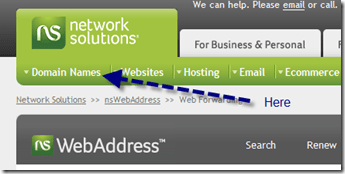
From your primary Dashboard, select the Web Forwarding option.  At Network Solutions, it’s under the Domain Names tab at the top of the page.

image

From the resulting page, select the domain you want to forward, then click on “Continue with Web Forwarding.”

image

On the next screen, fill in the URL of the category in the blank.  Web masking won’t work if your URL is a directory or database, but that’s OK.  The purpose is to get the readers to the new location at the blog category page.  You can brand the forwarded domain from within the category.

It Might Cost a Little

I don’t know what other registrars charge for web forwarding.  Network Solutions charges $12.00 a year.  A buck a month doesn’t seem too bad for a little consolidation.  Particularly consolidation that can be accomplished (or changed) via a few clicks on a web page.  Simple is good.

Don’t Forget to Feed Your Feed

If you have an RSS feed at the domain you are forwarding to the blog category, don’t forget to update the feed once you make this change.

In my case, I already had an RSS feed for GoodSongs.Com, which I publish via Feedburner.  My WordPress theme creates a feed for each category, so all I had to do was change my feed location for GoodSongs.Com to the category feed.

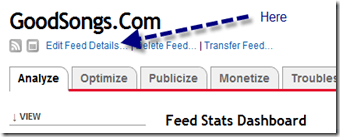
From the main Feedburner dashboard for the applicable feed, select Edit Feed Details.

 image

Then replace the current “Original Feed” with your new one.

image

That’s It

Once you’ve taken those simple steps, your domain will be forwarded to the blog category you selected.  Notice how GoodSongs.Com now points to the Music category here at Newsome.Org.

That’s step one in my consolidation and simplification process.  Stay tuned for more.

  • Share/Bookmark
Read full story View Comments

GoodSongs: A Fine Alt. Country Mix

gslogo

As a part of my online simplification and consolidation project (more on this later), I am moving our music recommendation blog, GoodSongs.Com, to the Music category here at Newsome.Org.  We’ll post a GoodSongs music recommendation list no more than once a week, where we’ll feature a wide variety of off-the-beaten path music.

Here’s the first installment of our hand-picked music recommendations.

Purchase links are at Amazon unless otherwise noted.

image

Steve Pride – Big Time.  Steve Pride and His Blood Kin do the excellent Welcome to the Big Time off of the also excellent Pride on Pride.

Star Room Boys – Angel Flying too Close to the Ground.  Maybe the best country band ever doing a live one (via the highly recommended music blog, Southern Shelter).

image

South Filthy – Sandra Lynn’s Blues.  One of my favorite songs, from You Can Name It Yo’ Mammy If You Wanna.

image

Gosdin Brothers – There Must Be Someone I Can Turn To.  The excellent Gosdin Brothers, from the best country rock record you’ve probably never heard.  With the great Clarence White on guitar.

image

Four Year Bender – New Orleans LamentFour Year Bender does an excellent song about the Crescent City.

image

Sixty Acres – Saint Rose.  Great song from their excellent record, Good Ethel.

image

Okra All-Stars – She’s Taken All My Toys Away.  From from their excellent self-titled 1999 album.

image

The Buckets – Postmarked Virginia.  My buddy Ray’s band.  Buy their records at CD Baby

image

Mount Pilot – 3 Years in October.  Off of the great but hard to find Help Wanted Love Needed Caretaker album.

image

The Figments – Feel the Fields, off of All the Gone Days.  Available at CD Baby.  This is as good as a song can get.

These are great records, by some fantastic bands.  Go buy these records and support people who make this great music.

Artist Notice: I am a musician and songwriter.  I do these posts to draw attention to great music in the hopes that our readers will buy these records and allow these artists to continue making great music.  If you don’t want us to feature your music, let us know and we’ll take the song file down immediately.  On the other hand, if you are an artist who does the sort of music we feature, let us know.  We’re always looking for new artists to feature.

  • Share/Bookmark
Read full story View Comments

The Lamest Spam I Have Ever Received

I got an email the other day that makes those 419 scam emails seem like Pulitzer Prize material.  Let’s break it down (my comments are in italics).

From: [Sender of Lame Spam]
Sent: February **, 2010
To: [My Email Address]
Subject:

[The first hint that this was a lame spam from a clueless spammer was the fact that he (a) didn’t know that email should have or (b) forgot to add a Subject.  By itself, this could be an inadvertent oversight, but oh no, much more lameness to come.]

Dear Valued Partner:

[This is my all time favorite salutation.  From now on when you speak to me, or even think about me, I require that you address me as “Valued Partner.”  Nothing could possibly demonstrate any more clearly that this dude blasted a bunch of spam and has no idea who he’s trying to talk to.  The only thing that would have been better is if he’d addressed me as Buddy or Sport.  Or Chief.  Chief would be cool.]

image My name is [Spammer] and I am the [Cat Daddy] with [Company of Spammer], a search firm. I wanted to take a moment to
introduce myself and my firm to you, and to let you know that based upon your practice area  [You can tell he has no absolutely idea what I actually do and instead refers cleverly to my “practice area.”  He blasted this to a universe of “Valued Partners,” “Buddies,” “Sports” and “Chiefs” and it would be far too burdensome to actually research all those people.  Apply a Universal BS Translator to this and it really says “I’m too lazy to identify real leads, figure out who the heck I’m trying to communicate with and suggest possible jobs that might actually be a good fit, so I’m going to throw some terrible BS against the wall and see if anyone is desperate enough that it sticks.”], we currently have a number of very exciting opportunities which I felt you might be interested in hearing about. [Sure you do.  You don’t know my name, what I do or even who you’re writing to, but you have the perfect job picked out for me.  Wow. Thanks.]

I appreciate your time and consideration [But mostly I appreciate mine, because blasting out a ton of spam is faster than actually developing leads.], and if I can ever be of service, either now or in the future, please don’t hesitate to give me a call.

Best regards,

[Sender of Lame Spam]

  • Share/Bookmark
Read full story View Comments

How to Set Up Email Subscriptions for Your Blog

image There are a lot of nerds out there- like me for example- who think that RSS and feed readers are the only way online information should be consumed.  We feel bad about being nerds, until we remember there is a whole class of uber-nerds, who think that not only information,  but every part of life, is derived from Twitter.  Or, God forbid, via Google Buzz(kill).  Just kidding, both of those guys are smart dudes and friends of mine, in addition to being uber-nerds.
But enough about those so-called social networks.

Because today I want to show you how to do a subscription service that someone with tan lines might actually use.  An email subscription.  You remember email, right?  That service that millions of people who either (a) have never heard of or (b) laugh hysterically at those who use Twitter use every day.  All day.

So let’s assume that (1) you’ve been outside in the past 48 hours and (2) you’d like to put together an email subscription service for your blog.

Step 1: Pick a Service

If you use Feedburner for your RSS feed, this is pretty easy.  Use Feedburner.  The other major choice is Feedblitz.  I used Feedblitz for a while, but its navigation structure makes Facebook’s byzantine navigation system seem downright GPS-like.  Plus, Feedblitz wants you to to (cover your ears webkidz) pay for its premium service.  So as a part of my forced march to WordPress and Blogger Custom Domains, I decided to take my email party back to Feedburner.

Step 2: Configuring Feedburner

Here’s how to configure your Feedburner account to permit and manage email subscriptions.

From your Feedburner dashboard, click on Publicize and then Email subscriptions.

image

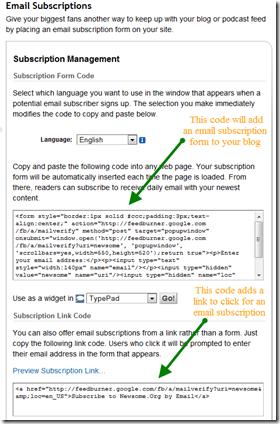
From the Subscription Management page, you can get code to embed a form or a link on your blog.  You can also enable a notification feature that will inform you when someone unsubscribes.  I wish Twitter had that feature.

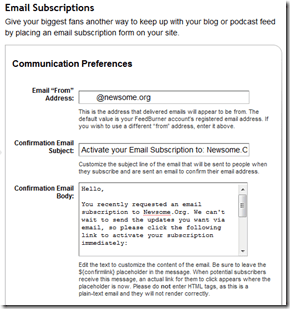
Next, go to the Communications Preferences page.  From here, you can set up your email address and the subject line and message for your email confirmations.

image

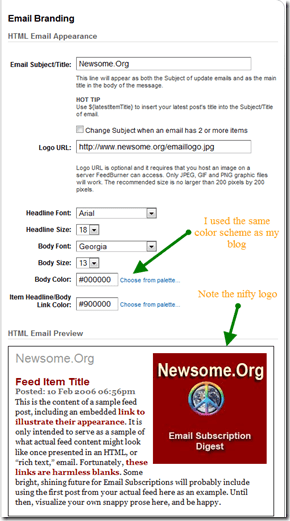
The next stop is the Email Branding page.  Here’s where you can really customize the look and feel of your emails.  You want the email to have the same branding, look and feel as your blog.  Note that you can create and upload a custom logo that will appear in your emails.

image

Finally, you can set your time zone and preferred delivery time via the Delivery Options page.

Step 3: Displaying the Subscription Option on Your Blog

Once you have configured your email subscription service, you’ll need to make potential subscribers aware of it.  Many WordPress themes and Blogger templates are pre-configured to display email subscription information.  See the top of this blog (WordPress) or Err Bear Music (Blogger) for examples.

image

Even if your theme or template doesn’t come pre-configured, you can easily add a subscription form or link, by adding the code that Feedburner provides on the Subscription Management page.

In addition to displaying the option on your blog, you should consider adding a link to your email signature, as those who would be most interested in an email subscription may not visit your blog, but do use and see email.

Step 4: Post as Normal and Let the Service Do the Work

After setting up your service and displaying a subscription form or link, your email subscribers will receive one email each day containing your blog posts for that day.

Here is a sample, from one of my recent subscription emails.

image

Step 5: While You’re Thinking About It, Subscribe to Newsome.Org Via Email

By clicking here.

That’s it.  Let the emailing begin!

  • Share/Bookmark
Read full story View Comments

Record LPs to CDs Without a Computer

As most of you know, I’m a big music fan, having bought records, 8-tracks, cassettes, CDs and MP3s pretty much non-stop since I bought my first LP (Glen Campbell) back in the mid-sixties, and having been a songwriter and (starving) musician for years.

The combination of music and evolving technology means I often find myself with some great records on outdated media.  Generally, this means great LPs that aren’t available on CD or MP3.  I’ve converted quite a few records, and did a tutorial that remains one of my most viewed posts.

The approach I describe in that tutorial is as workable today as it was the day I wrote it.  But recently I decided to try another approach.  I wanted to bypass the computer altogether, and record directly from LP to CD.  Then, and only then, do I want to move or rip the songs to my MP3 library.

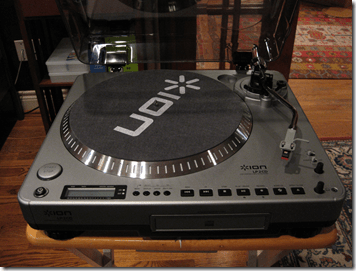
The tool I chose to do this is an Ion LP2CD turntable.  This is one versatile turntable.  It will connect to your receiver or your computer (via USB), and it has a built-in CD burner that will burn the LP directly to CD.  Or, actually, to its internal flash drive, and then to a CD.  This intermediate step is a good thing, since you can trim the song files, correct any glitches in the automatic song splitting and even reorder the songs, before you burn the CD.

Sweet, huh?

Unboxing

image

The turntable is fairly compact for one that includes a built-in CD burner.  I was able to put it together without reading the instructions.  Two hints: look closely for all the small pieces (the 45 insert, the counter weight for the arm, the needle, etc.), which come taped to various parts of the packing styrofoam; and don’t forget to pull the rubber drive belt around the spindle (see page 5 of the Quickstart Guide).  It took me less than 5 minutes to get the turntable put together,  plugged in and ready to rock and roll.

Picking a Test Record

image

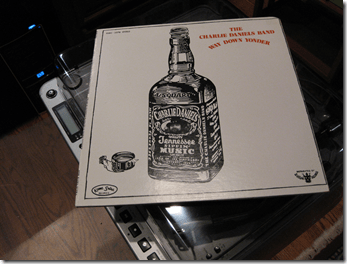
One the the best records you’ve never heard is The Charlie Daniels Band’s 1974 record, Way Down Yonder.  This is pre-Devil Went Down to Georgia Charlie Daniels, and sounds much more like the Allman Brothers or good, early and bluesy Elvin Bishop, than later era Charlie.  Sadly, it’s not available on CD or MP3.  But I have the record, and decided to use it to test the turntable.

Recording

The turntable has a handy headphone jack, so you can hear what you’re doing.

To record an album, put it on the turntable, play it a bit to get the sound levels right.  There’s a recording level knob and a level indicator on the led screen.

image

Once you’re ready, put the turntable in “INT” mode (internal flash drive), put the needle where you want to start, press Record button (the red light will come on), press the Play/Pause button, and then immediately the Start/Stop button, to begin the recording.  The turntable will attempt to automatically split the tracks based on gaps.  It does a good job, unless the record has a fair amount of scratches.  Fear not, it’s easy to manually split tracks once you’ve finished the recording.

In my test, Side A, which had a few scratches, didn’t split perfectly, but Side B did.

Splitting and Trimming

After you’ve recorded the record onto the flash drive, you can split tracks by navigating via Fast Forward or Reverse to the desired place and pressing the Split button.  You can also easily split out and erase long silences between tracks, if necessary.

In sum, this process works very well.  It’s easy, and even fun.

Recording to CD

Once you’re ready, recording to a CD is as easy as putting a blank CD-R into the CD drive and pressing the Burn CD button.  It literally could not be any easier.

The Results

The CD sounds great.  Sure, you can hear the same scratches you hear when you play the LP, but the reproduction is excellent.  Ripping the CD to your MP3 library is quick and easy.

Here’s the excellent song Land of Opportunity, to hear for yourself.

My only wish would be that the device record to the CD in MP3 format.  It would be great to save a step and avoid having to rip the CD.

But It Ain’t Cheap

The biggest, and just about only, drawback to the LP2CD turntable is its price: $321 (at Amazon).  If you have one or two records to convert, it’s definitely not for you.  If you have- or would like to buy- a lot of hard to find LPs, it just might be your ticket.

It’s going to be mine.  Time to browse eBay for some classic vinyl.

image

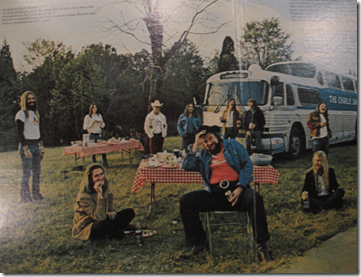
The inside cover of this excellent record

  • Share/Bookmark
Read full story View Comments

Seesmic Web Makes Good Twitter

I was way late to the party, but have been using and enjoying Seesmic Web for the past few weeks.  It takes the chaos and user-unfriendliness that is the native Twitter web site, and makes it darn near usable.

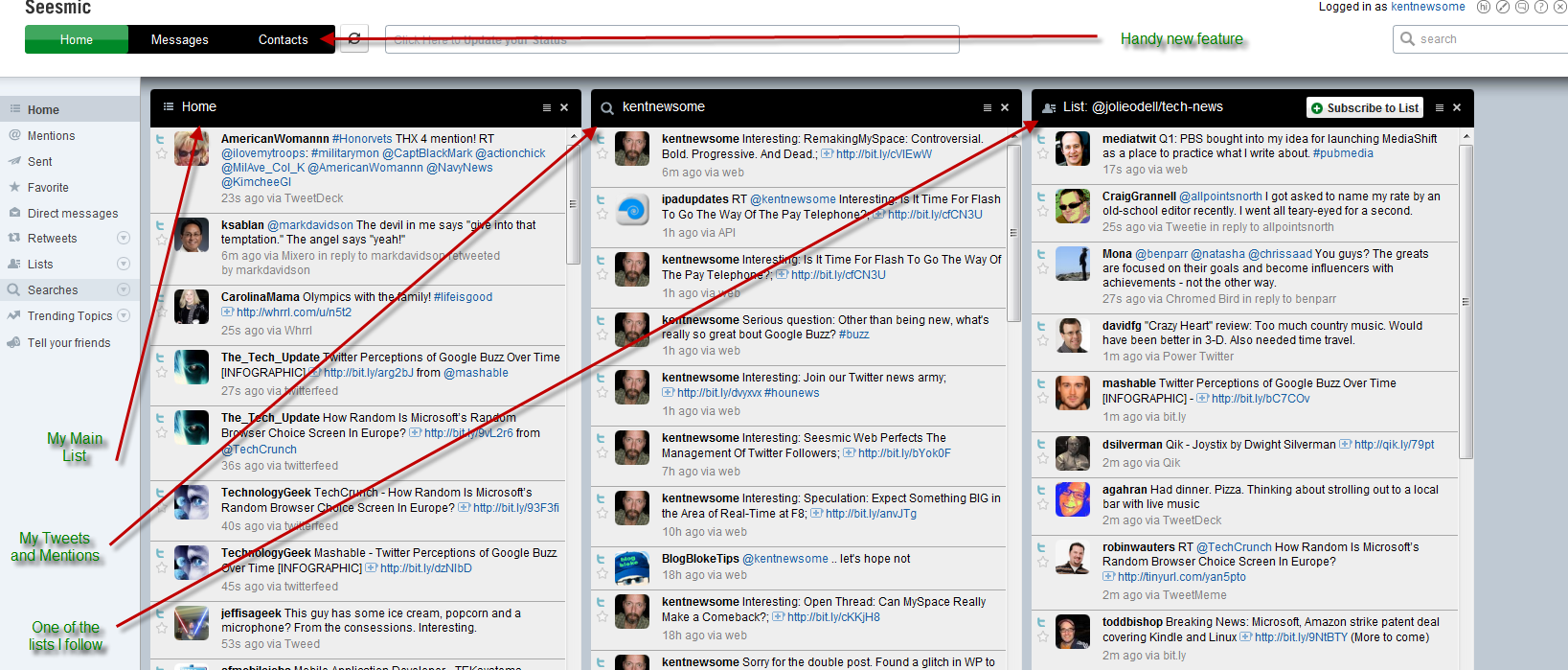
I like the way I can select, see and manage three columns of content on one screen.

image
click for a bigger, annotated image

I keep my main feed in the first column, and either a saved search or one of the lists I follow in the second or third column.

Today, Seesmic updated the app to include some really helpful new features.  One of those is pretty close to the feature I asked for the other day- better subscription management.

See the Contacts link?

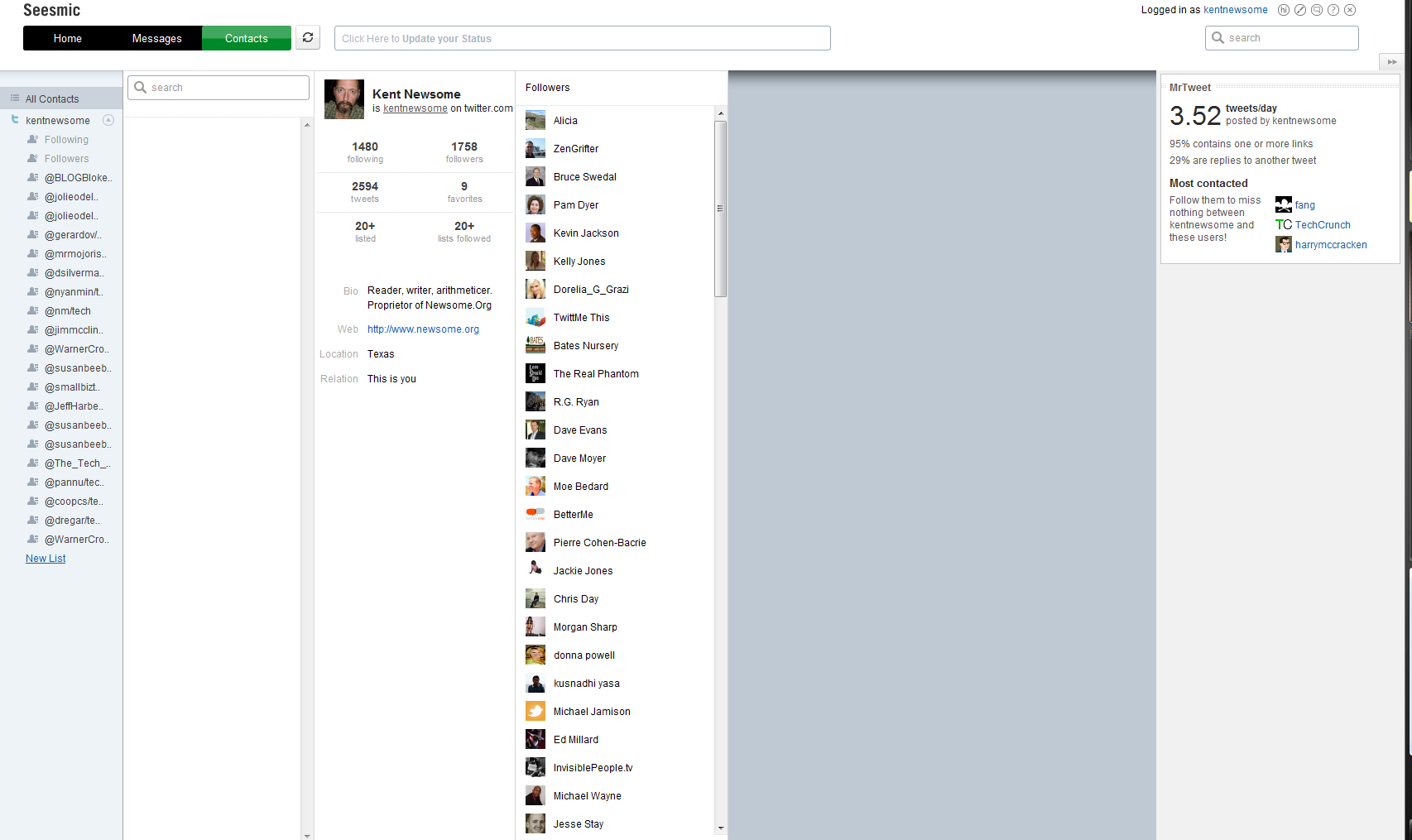
Click on it, and you get a screen and toolset that makes managing your follows a lot easier.

image
click for a bigger image

Click on the “following” link beneath your photo, and you get a list of the people you follow.  Click on a person, and you get a screenful of information.image

I’m following the Dalai Lama, but alas he is not following me (can’t imagine why not).  If he was, that message would say “This user and you are following each other.”

From this screen, you can also send a message or unfollow someone.  Not perfect, but better.

It’s also easy to manage lists from this screen, and like Facebook, lists are crucial to an efficient Twitter experience.

The new version still has some issues.  I’ve had some log-in problems, lockups and script errors in Firefox 3.5.8, and the All Contacts button doesn’t seem to work after you view a contact’s details.

But it’s a definite step forward.

  • Share/Bookmark
Read full story View Comments

Are We Talking Ethics or Grudges or Just Funny?

Let me begin by making two important points.  One, other than a brief handshake at a conference once or twice, I’ve never met any of the main players involved in this TechCrunch/Crunchgate thing.  Two, I have no personal knowledge about the facts, as they exist or as they have been described, other than what I’ve read online.

Having said that…

A Quick Recap

image TechCrunch, a very popular website, had an intern or part-time employee who may have asked for or been offered some manner of compensation from companies seeking coverage on TechCrunch.  Such an act would be bad mojo for a new media web site trying to be taken seriously, and make lots of money in the process.  Mike Arrington, the founder and presumably majority owner of TechCrunch, wrote an apology and sacked said intern.

Loren Feldman, of 1938media, wasn’t all that impressed with Mike’s mea culpa.  It was noted in Loren’s post, and may be relevant to the discussion, that Mike and Loren apparently had a falling out in the past.  I don’t know the details, and they don’t matter at this point.

All of which led me to wonder, as I read the posts discussed below, how much of this is ethical activism, how much is some inside joke between two of the popular geeks, how much is grudge-fighting, and how much is just good old fashioned humor.

It gets confusing.

And while we’re talking about confusion and disclosure, let me note that I have written negatively about a lot of stuff Mike has said and done.  On the other hand, I have written in support of other things he has said or done.  See, I’m fair and balanced and transparent and confused.

Back to Mike and Loren…

Some of the things Loren says are spot on:

Why is TechCrunch even covering Yazzem? As a commenter points out, talking about “M&A”, “advertising” and “premium features” as part of a $15,000 deal between two companies with no web traffic clearly isn’t news.

And much is hilarious:

The Gillmor Gang may or may not be a TechCrunch production. It consists of non-technical people yelling at each other about technology and runs for what feels like eleven hours. Visuals focus on odd angles of nostril hair, bad cell phone call-in audio, and lighting that makes them look like lizards. Their most popular video is a 90 second YouTube clip where keyboard cat plays jazz organ after Mike acts like an idiot, a Google employee throws his Skype headset down in disgust, and I roll my eyes uncomfortably.

There are good points, and there are funny lines.  There is also hostility and belittling.

Maybe there’s a topic here we should discuss.  If I could stop laughing.  And cringing.  And laughing.  And cringing.

I Know You Are, But What Am I

Before I read all about this latest blogospat (or whatever it truly is), I did note with some interest that TechCrunch was throwing rocks at InfoWorld for not being as quick or as good at apologizing.  Maybe this is the best defense is a good offense thing, but I would think that’s a story Mike could have let pass right by without comment.

And Now for Something Completely Similar

All of this led to a post yesterday by Loren in which he takes some more, admittedly generally funny, shots at TechCrunch and then provides a list of over 100 companies whose mentions at TechCruch were deleted.  Including such juggernauts as Microsoft, Facebook, Intel and Yazzem.  Thank God Bebo wasn’t on that list.

See, I can be funny too…

Which, Finally, Leads to My Point.  Hey Wake Up!

I love a good blogospat.  I’ve written about some of the best of them.  I’ve been involved in a few.

But beneath all the punches and humor, isn’t there an important issue here?

People talk about blogs.  They love ‘em or they hate ‘em.  They are either the evolution of journalism or the new neighborhood papers for persistent nerds.

All of that is wrong.  Well, except for the nerd part.  That’s sort of right.

Blogs don’t really exist.  Not in the way most people describe them. Blogging is merely a content creation and management platform- like WordPress or Blogger.  Content is still content, and media is still media.  If someone wants to be taken seriously, whether as a blogger, a musician or a chimneysweep, he or she has to respect the rules of the game, manage their brand and nurture their credibility.  Whether you publish on dead tress, blogging platforms, email or signs behind airplanes is irrelevant.

So I think it’s fair and appropriate to debate TechCruch’s (and InfoWorld’s) actions in the wake of material credibility issues.  But if what we are really doing is having some personal grudge-match or engaging in extreme and generally hilarious satire (Disclosure: I think the funniest move ever made is Idiocracy, so I love satire as least as much as the next geek), let’s just say so.

I’d like to either promote distributed media (my pre-owned cars word for what some erroneously call blogging) or bury it in absurdity.

I’m happy either way.  Let’s just pick one.

  • Share/Bookmark
Read full story View Comments

How to Vastly Improve Your Facebook Experience with Filters and Lists

The sheer number of friends I have, in the real world and on the internet, who use Facebook ultimately led me to capitulate and start using it a little.  I’m not a huge fan by any means, but I will admit that I enjoy seeing what my friends are up to.

But like every other social application, you have to work a little to keep the experience efficient and rewarding.

Filters Make Good News Feeds

The most useful Facebook feature I have ever stumbled across is the ability to filter out certain content.  This has allowed me to banish from my sight all things Farmville, as well as most other games and gift apps (you know, where someone sends you a hug, or whatnot).  If you want to filter something, hover over an entry, click the “Hide” button that appears and choose to hide the application.

image 

Presto, no more screen clutter.

Doing this vastly improved my Facebook experience.

If you later decide you can’t live without the content you have filtered out, go to the bottom of your Top News page (not your Most Recent page), and click on Edit Options.  From there you can add any exiles back to your news feed.

image

The Circle is Large

Another thing that can really enhance your Facebook experience is the use of lists.  Here’s how you make a list, why you should and what lists allow you to do.

I have a very eclectic group of Facebbook friends.  Some from my hometown (Cheraw, SC), some from college (Wake Forest), some from Texas, and some that I know through years of tech blogging.  There are a couple of things I’d like to be able to do.

1. Have the option to read content from only one group at a time.

2. Share some things with one group, but not others.

Make a List and Check it Twice

The first step is to create Friends lists.  Take the time to decide on the best way to divide your Friends.  I decided to divide my as follows: Cheraw, WFU, Texas and Tech.  I may add more later.

Start by clicking Friends on the left side of your Home page.

image

Then click the Create a List button near the top right of the next page.

image

Name your list, and click on the applicable photos to add your friends to that list.  Friends can be on multiple lists.  When you save it, the newly created list will appear under Friends in the left hand column, when you click on the Friends link.

image

Now, if you want to see content from only people on one of your lists, all you have to do is click on that list.

Quick Note: Deleting a Facebook List

Facebook has probably the most unintuitive terminology and navigation structure in the history of the world.  You can see above that I originally had a Personal list, which I decided not to use.  To delete a list, Click on Account (near the top right of the page) and select Edit Friends.  You’ll see your lists in the left hand column.  To delete a list, click on it and select Delete List at the top.

image

So that’s the way to set up lists that you can filter for content, and to delete ones you no longer want.

Protecting Your Info

Another thing lists allow you do do is decide what portions of your personal information and content can be seen by each group.  I haven’t done a lot of this yet, but here’s how you do it.

Click on Account and then Privacy Settings.  From here, you can customize the way lots of information is distributed.

image

Let’s say you want to control who can see your mobile phone number.  First, click on the Contact Information link.  Then click on the button beside Mobile Phone.

image

From the pop-up menu, click Customize.  In the box beside “These people” select Specific People.

image

From this page, you can elect to make this information available to only specific lists and/or to hide it from specific lists.

You Can Also Customize Posts

Once you have lists set up, you can also share content with only certain lists.  Let’s say I want to share an article about the Wake Forest basketball team’s latest clinic in under-achieving with only my WFU list.

After inserting and attaching the link, click on the lock icon near the bottom of the box.

image

Again, select Specific People in the box beside “These people,” and type the applicable list in the box.

image

This will share the link with people in my WFU list, but not with people in other lists, who didn’t go to Wake Forest and can be spared from the frustration that comes with being a Deacon fan.

It’s Hard, But Manageable

Facebook is burdened by a byzantine navigation structure that harkens back to its origins.  It is a lot harder to configure and navigate around Facebook that it ought to be.  But it can, and should, be done if you want to get as much out of Facebook as possible.

  • Share/Bookmark
Read full story View Comments