Tag Archives | wordpress

WordPress for iOS 2.6.4 Released

After I pooped all over the WordPress app the other night, I was pleased to see that an update was released today.

Version 2.6.4 allegedly fixes some bugs.  That’s good

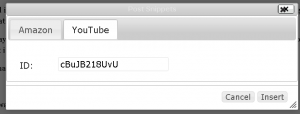
It is now easy enough to insert, if not place, images.  It is still a huge pain to insert links.   My best tip here- use a URL shortener to save some typing.  For those like me who keep forgetting how to do links in the app, type http:  and the form will pop up.

The next thing WordPress should do is allow for a default URL shortener to be set, so all you have to do in the link URL form is type the shortened link code.  That would save a ton of time.

I wrote this post on my iPhone, and it wasn’t a completely horrible experience.  Let’s see how it turns out.

What WordPress should do is opt for a bookmarket equivalent, with a browser-based implementation of the “Press This” app that renders a minimal, but usable, web-based editor.

Just to see if I can do it, here’s a random image.

So how’d it do?

Update:  It did OK.  I like two spaces between sentences, and those didn’t make it.  But other than that and a few small screen related typos, the post came out pretty good.

FacebookGoogle+StumbleUponFriendFeedDeliciousInstapaperRead It LaterShare
Comments { 4 }

Live Writer Beta + WordPress 3.0 = Jumbled Mess (for Now)

NOTE: This blog post is going to be all jumbled up.  I am trying to show the Live Writer developers a problem that exists with the current beta and WordPress 3.o

I love Live Writer.  I’m even willing to learn to live with the Ribbon in the beta version.  I love WordPress, and find 3.0 to be a nice advance of the platform.

But, at least for now, the Live Writer beta and WordPress 3.0 do not play well together.  The problem is that the photo or other graphic layout (location, placement, etc.) created in Live Writer does not make the trip through WordPress 3.0 and onto the applicable blog page.

Here are some examples, using some random screen caps.

image

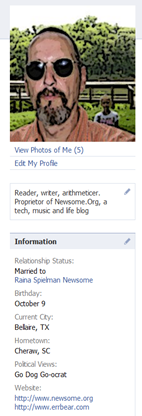
There’s a screen cap of my Facebook profile.  I am a Go Dog Go-ocrat, because I think just about every single problem we face in society originates from the moment the first person decided it was really important to differentiate himself from all the other people.  In other words, once dogs start driving cars, it’s all over.  More importantly for purposes of this post, that graphic is supposed to be above this paragraph.

Here’s a picture of a book I just read.  I liked it.  That graphic is supposed to be below this paragraph.

image

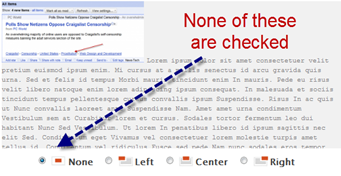
For some reason, the alignment and other information is getting lost between placement in live writer and publishing to a WordPress 3.0 blog.  When I look at the published and jumbled post under the WordPress dashboard, the graphics appear to have no placement information associated with them.  By that I mean nothing is shown under the graphic, not even “None.”  That graphic is supposed to be under this paragraph.  None of these images should have words beside them.

image

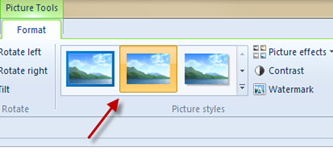
I suspect that this problem has to do with the photo setting “Inherit from Blog” in Live Writer.  It may be that you need to specifically set the information for each photo or graphic to “None” by double clicking on the image and selecting the second choice under Picture Tools.  Let’s see if that helps.

image

Nope.  It’s still a mess.

Live Writer and WordPress are two of the three applications (along with Google Reader) that I use the most.  I’m sure this will get fixed.

I’m just doing my part to try and help.

FacebookGoogle+StumbleUponFriendFeedDeliciousInstapaperRead It LaterShare
Comments { 2 }

Backing Up and Upgrading Your WordPress Installation

This post has multi-media content.  Click here before proceeding (purchase this classic De La Soul record @ Amazon).

This is a new installment of my The WordPress Process series, documenting my forced march from the comfort of Blogger to the uncharted territories of WordPress.  Parts 1 & 2 are here, Part 3 is here, Part 4 is here, Part 5 is here, and Part 6 is here.

image As everyone knows, WordPress 3.0 was released this week.  This morning, I upgraded my WordPress installation (which uses Woothemes’ excellent Canvas theme), easily and without a hitch.  Here’s how I did it.

First, backup your blog.  There are about a million ways to do this.  Most ways are free and hard.  So I went with not free and very easy: I paid $45.00 for Backup Buddy.  Backup Buddy looks impressive, and more importantly, my pals over at WordPress Tavern really like it.  I can confirm that installation and activation is a breeze and a full backup takes just a few minutes, even using the slower compatibility mode.  Obviously, you never really know if a backup system works until you have to restore lost content, but Backup Buddy looks like a screaming bargain at $45.00.  The installation, activation and backup process could not be any easier.

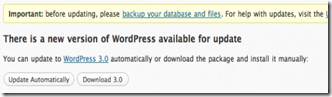
After that, upgrading was a simple as clicking the “Update Automatically” button on the WordPress Dashboard.

image

Wpveda has a good  walk-through.

Note that the WordPress upgrade takes a little while.  So don’t panic if the screen remains blank for a while.  That is normal.

All in all, it took about a half hour to backup and upgrade my WordPress installation.  So far, it works great.

Later I’ll cover the new features.  I’ll also try to answer any questions you have about the process in the Comments.

FacebookGoogle+StumbleUponFriendFeedDeliciousInstapaperRead It LaterShare
Comments { 1 }

WordPress & iPad: a Pretty Good Combo

One of the first iPad apps I downloaded was the new, iPad optimized version of WordPress.  While only time and blog posts will tell how often I do it, I can tell you that it is very easy to configure and use the WordPress app on an iPad.

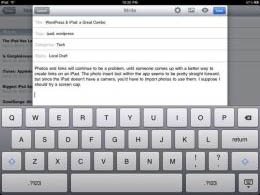
Photos and links will continue to be a problem, until someone comes up with a better way to create links on an iPad.  The photo insert tool within the app seems to be pretty straight forward, but since the iPad doesn’t have a camera, you’d have to import photos to use them.  I suppose I should try a screen cap.

I added a screen cap of the app interface, and sadly it seems the app still adds photos to the end of a post, and only then when published. I suspect it will also be sideways (it was, and I couldn’t even fix it with Live Writer).

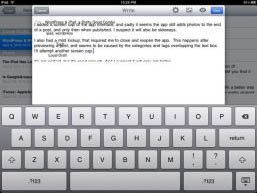
I also had a mild lockup, that required me to close and reopen the app. This happens after previewing a post, and seems to be caused by the categories and tags overlapping the text box. I’ll attempt another screen cap.

It’s not perfect, but it’s good enough. And I suspect it will only get better.


The interface, including the keyboard, works well.  Photos
are still a huge issue, as they get added to the end of the post,
sideways and far too big (I resized these via Live Writer).


Notice the jumbled words.  The categories and tags are
on top of the text box.

FacebookGoogle+StumbleUponFriendFeedDeliciousInstapaperRead It LaterShare
Comments { 0 }

How to Point a Domain to a Blog Category

One of my long-time and oft-stated problems with all of the so-called social networks is the brand and attention dilution that occurs when content producers cast their content across numerous networks, sending readers on a wild goose chase as they try to keep up with everything.  While I’ve done a lot better than most when it comes to keeping my content centered around my web site (Newsome.Org), I too have been lured into spreading myself too thin, network-wise.

I’m going to fix that.  I am in the process of consolidating most of my content and much of my applications.  When all is said and done, I will be a power user of this blog and a small number of ancillary networks (maybe as few as two: Twitter and Facebook).  Additionally, I intend to shrink my cloud toolbox down to a manageable size.  More on that later.

Today I want to take the first step, which is to consolidate our music recommendation blog, which was previously hosted at Tumblr, into Newsome.Org.  Specifically, I want that content to be included here- under the Music category.  But I want to continue to use the cool and valuable top level domain (GoodSongs.Com) that I have been using for song recommendations.

Here’s how that can be done.

What You’ll Need

To have this need and to make this work, you’ll need a blog platform that includes categories, tags or some other naming convention that has a URL.  I use WordPress, and I have a Music category (see the menu at the top of the page).  The URL for that category is http://www.newsome.org/category/music.

You’ll also need a domain (or a sub-domain) separate from the one that you use for your blog, that you want to point to the category.  As noted above, I am going to cause GoodSongs.Com, which previously pointed to a custom domain at Tumblr, to be redirected to my Music category here.

Use a Redirect

One way to redirect a domain to a blog category is through URL redirection  or a refresh meta tag.  A redirection makes sense if you have a long-standing or popular site that you want to move, so you can preserve links and Google juice.  If you, like me, just want to use your domain as an alternate address for a blog category- or if you don’t have the technical chops or server access to do a redirection, web forwarding might be your solution.

Configure Web Forwarding

I use Network Solutions as my primary domain registrar.  Here’s how you configure your domain for web forwarding via Network Solutions.  The process is probably similar at other registrars, but you may need to explore the configuration dashboard and maybe the help files to find the right pages and settings.

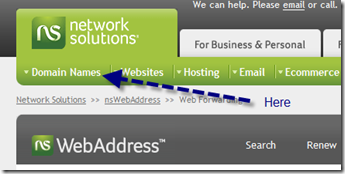
From your primary Dashboard, select the Web Forwarding option.  At Network Solutions, it’s under the Domain Names tab at the top of the page.

image

From the resulting page, select the domain you want to forward, then click on “Continue with Web Forwarding.”

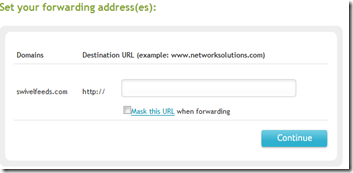
image

On the next screen, fill in the URL of the category in the blank.  Web masking won’t work if your URL is a directory or database, but that’s OK.  The purpose is to get the readers to the new location at the blog category page.  You can brand the forwarded domain from within the category.

It Might Cost a Little

I don’t know what other registrars charge for web forwarding.  Network Solutions charges $12.00 a year.  A buck a month doesn’t seem too bad for a little consolidation.  Particularly consolidation that can be accomplished (or changed) via a few clicks on a web page.  Simple is good.

Don’t Forget to Feed Your Feed

If you have an RSS feed at the domain you are forwarding to the blog category, don’t forget to update the feed once you make this change.

In my case, I already had an RSS feed for GoodSongs.Com, which I publish via Feedburner.  My WordPress theme creates a feed for each category, so all I had to do was change my feed location for GoodSongs.Com to the category feed.

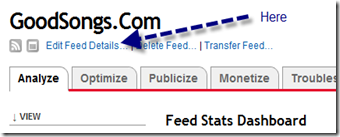
From the main Feedburner dashboard for the applicable feed, select Edit Feed Details.

 image

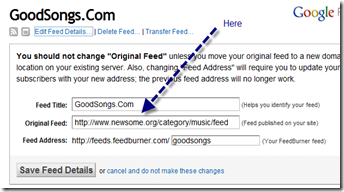
Then replace the current “Original Feed” with your new one.

image

That’s It

Once you’ve taken those simple steps, your domain will be forwarded to the blog category you selected.  Notice how GoodSongs.Com now points to the Music category here at Newsome.Org.

That’s step one in my consolidation and simplification process.  Stay tuned for more.

FacebookGoogle+StumbleUponFriendFeedDeliciousInstapaperRead It LaterShare
Comments { 2 }

How to Use the New Newsome.Org

OK, our migration to WordPress, which was documented here, is complete, and I am very happy with the results.  In sum, I think the new look and the new functionality rocks.

But, as a blog partially targeted to grownups who don’t necessarily live in Google Reader or on Facebook or Twitter, we have a lot of readers who consume our content the old fashioned way.  By coming to the web site and clicking around.

I’ve had a few questions, so here’s a rundown on how to use the new layout.

image

First, what hasn’t changed.  The newest content, across all Categories, is still located in the middle column, with the newest post at the top.  This has not changed- it was the same way in the prior layout.

Categories

But now, there are additional options, if you want to filter your content.  You can slice and dice content several ways.  First, by Category.  Note the horizontal menu between the red header and the gray line at the top of the page: Home, Tech, Music, Life, How to, etc.

Let’s say you want to read only our music content.  Click on that link in the top menu, and the center content will display only our music content, with the newest content at the top.  Same with Tech, Life and How to (our tech tutorials).  If you want to hear our podcasts, there’s the Podcast link.

Media, which has two sub-categories, is the place to go for photographs or videos.

Finally, there is an About page for those who want to know more about me and a Contact page, where you can send me an email or leave me a voice mail.

In sum, the default Home page has the same content as our old layout, but there are now topical options that display specific kinds of content.

More Ways to Find Good Stuff

Categories are great, but there are even more ways to drill down to the content you want.

See the box in the right hand column with tabs: Popular, Latest, Comments and Tags.  Popular shows the recent posts that have the most discussion (e.g., comments, reactions, etc.).  Latest shows a quick list of our latest posts.  Comments displays the most recent discussions that have occurred in comments to posts.  And finally, Tags are a clickable index where you can click on a topic and get only content about that topic.  If you are looking for something very specific, the Tags tab is the place to start.

You Can Read Content in a RSS Reader

Another option is to read our content in a feed reader, such as Google Reader.  We have our main RSS feed, which has the same form and content as always.  Additionally, there are Category-specific RSS feeds near the top of each Category page.

Or Via Email

If you’d rather avoid the whole web-business and don’t use a feed reader, there’s the option to have a single email delivered straight to your inbox every night, with all of our posts for that day included.  To subscribe by email, click here or on the link near the top of the page.

What About the Sidebars?

There are a lot of extra goodies in the two side columns.

On the left hand side, we have a Menu of Newsome.Org content; links to my pages on the various social networks and photo and video sites; links to our excellent, hand-crafted Pandora radio stations (take a listen, you’ll like them); and hand-picked music and book recommendations (which are linked  to Amazon, where you can buy and download them or have them mailed with just a couple of clicks).

On the right hand side is the tabbed content box described above; a search box, where you can search Newsome.Org and see what others have recently searched for (that list is also clickable); a list of my latest Twitter posts; and some of my Flickr photos (click for the larger versions).

That’s it.

We’ve made it easy to find the content you’re looking for.  Enjoy.  Leave us a comment and tell us what you think!

FacebookGoogle+StumbleUponFriendFeedDeliciousInstapaperRead It LaterShare
Comments { 4 }

WP Plugin: WP to Twitter

I’ve been using the Twitter Notify plug-in via Live Writer to post new blog post notifications to Twitter, but there are problems with that approach.  It doesn’t work when I post from the WordPress Dashboard, or when I (try) to post with the WordPress iPhone app.  So I went looking for a better method, and came up with WP to Twitter.

You can configure WP to Twitter to do just about anything short of tying your shoes.  You can configure it to work with several URL shorteners, including Bit.ly.  You can configure it to Tweet new posts (good) or edits to posts (with my typo-correcting requirements, bad).  You can customize the content and sequence of the Tweet, convert tags to Twitter hashtags and more.

Best of all, it will automatically push new posts to Twitter, regardless of where and how the post is created.

All in all, pretty nifty.

FacebookGoogle+StumbleUponFriendFeedDeliciousInstapaperRead It LaterShare
Comments { 0 }

WordPress for iPhone 2

With most of the heavy lifting behind me in my migration to WordPress, I’ve started looking at some more subtle features. I’ll cover plugins later, but I want to try WordPress for iPhone 2.

I can already tell it tries to overcome the aggravating inelegant linking issue that plagues every iPhone app to one extent or the other.  It’s easy to create a post, and, once you figure out how to do it (via the Status screen), easy to publish posts.

We are at Tokyohana with our good friends the Brooks, who are visiting from Atlanta.

I took a (blurry iPhone special) picture to add to this post. Wonder if and where it will appear?

Update: Pictures appear at the end of the post, which would be fine except they are huge (I resized it from my desktop).  If this is how it works, the photo addition feature is useless.

The company is great, the food is excellent, and the app is very good. It does about as much as can be done to make it less than torture to create a link.

I bet this will rock on an iPad!

Now back to friends and food.

Update 2: I was unable to post over 3G, but it seemed to work via wifi.  I hope that’s a network glitch and not an app limitation.

FacebookGoogle+StumbleUponFriendFeedDeliciousInstapaperRead It LaterShare
Comments { 3 }

More on Blogger Custom Domain Publishing

I’ve been spending a lot of time working on Newsome.Org’s move to WordPress, which is going remarkably well (more on that later).   But today I want to look a little deeper into the process and benefits of publishing your blog via a Blogger Custom Domain.

First, a recap.  Recall that Blogger has announced that it will discontinue publishing via FTP on March 26, 2010.  This caused a general panic here at Newsome.Org, followed by a somewhat more thoughtful election to move Newsome.Org to WordPress and my music publishing company (Errbear Music) to a Blogger Custom Domain.  As I noted before, the process was generally very easy.  Here’s the step-by-step walk-through of the process.

Here are some updates.

Adding Post Pages

When I was publishing to Errbear Music via FTP, I was hosting the blog files in a directory on my Newsome.Org server, and using a page in that directory (errbear.html) as the blog’s front page.  I  then parked the  errbear.com domain on that page, meaning that when someone directed their browser to errbear.com, he or she was forwarded to the errbear.html page.  It looked reasonably seamless.  The problem became that all of the post pages and other ancillary pages were located at Newsome.Org, and had a Newsome.Org URL.  Once I set up my Custom Domain, I wanted to have all of the post pages and ancillary pages located within that domain.  This happened automatically for the post pages, but could not happen automatically for the various ancillary pages located in that directory.  The majority of those ancillary pages were the very important lyrics and streaming mp3 pages for my songs.  This required me to create a new post page, containing the lyrics and a streaming mp3,  for each of my songs.  It wasn’t a soul-crushing task, using Live Writer and the time saving Text Template plugin, but it did take some time.

I want to be clear about something, to avoid confusion.  The pages I am talking about were not previous blog posts.  They were html files on my server that I linked to from the sidebar and in blog posts.  For those who wonder how things got that way- my Errbear Music pages pre-dated by years the advent of blogging and blogging software.  Those pages existed when I moved to a blogging platform.

A couple of pointers for anyone who has to do this:

1. Blogger allows you to mass edit labels.  This is a huge time-saver.  I decided about 2/3 of the way into the process to create genre-based labels.  It would have been soul-crushing to go back and add labels to each post page manually.

2. There is a limit to the number of posts you can make each day to a Blogger blog.  I don’t know the number, but it’s large.  I ran into the “too many posts”  error a couple of times when adding the post pages.  Wait a day and you can get back to uploading pages.

I would note that I decided to leave the mp3 song files on the Newsome.Org server.  The size of that song library and all the links out there (via a lot of the music search engines) led me to conclude that those files should be left where they are.

Templates are Themes

I wasn’t all that crazy about the default selection of templates.  Initially, I hacked up one of the default selections and made it work.  There are, however, a lot of good templates out there, you just have to look for them.  I started with the Natural Health theme, and went from there.  I think that template is as pretty as any WordPress themes I have seen.

It’s easy to upload a template via your Blogger Dashboard.  Simply find a template you like and then:

1.  Download the template to your computer.  If the template is contained in a zip file, extracted the XML template file.

2. Log in to your Blogger Dashboard and go to Template> Edit HTML.

3. Back up your old template in case you decide to use it again. Simply click on the “download full template” link and save the file to your hard drive, or just copy and paste the html to Notepad.

4. Look for the section near the top where you can browse for your XML template.

5. Enter the location of your template and click “upload”.

6. The html of your new template will now appear in the box below. You can preview your new template or save it and start using it right away.

Hacking the Template

Much of what you want to change can be done via the Layout editor within your blog settings.  Blogger has a “Gadget” approach, very similar to WordPress’s “Widgets.”  While there isn’t the developer community behind Blogger Gadgets like there is for WordPress plugins and Widgets, I am confident that you can do just about anything layout or content wise on a Blogger template that you can do in a WordPress theme.

At the end of the day, I found the manipulation of  Blogger templates to be a little less powerful and a little easier than WordPress themes.  It’s not the kiddie pool, by any means, but there is a rope to help you keep from drowning.

One tip:

While you can do a lot via the Layout editor, you’ll need to (and can) edit the html for some tweaks.  For example, until I went in and hacked the template code, my email subscription form was subscribing people to the email feed of the template developer.  For what it’s worth, I have been using Feedblitz for my email feed for years, but moved back to Feedburner for both my blogs today.  (If you don’t know what a Feedreader is and want to subscribe to Newsome.Org via email, click here)

At the end of the day, moving to a Blogger Custom Domain is very easy, and Blogger provides the tools to create just about anything you could want.  I’ll do a feature by feature comparison of Blogger and WordPress soon, but in the meantime, I can say that publishing to a Blogger Custom Domain is a fine, feature-rich option for your blog.

As always, I’ll try to answer any questions posed in the comments.

FacebookGoogle+StumbleUponFriendFeedDeliciousInstapaperRead It LaterShare
Comments { 0 }

The WordPress Process, Part 6

The WordPress Process is a series of posts at Newsome.Org, documenting my forced march from the comfort of Blogger to the uncharted territories of WordPress.  Parts 1 & 2 are here, Part 3 is here, Part 4 is here, and Part 5 is here.

image At long last, we have arrived at the Promised Land.  Newsome.Org is up and running on WordPress.  Most (I have identified one casualty so far, and there may be a few more) of my 1600+ posts made the trip, and we have preserved the permalinks (more on that below).  While I was able to get WordPress installed, hack-up a theme and generally get the system operational, the hardest and most important step is the importation of old blog posts and the preservation of your existing inbound links.

In that regard, there are two important things those moving established blogs from FTP published Blogger to WordPress need to consider.

It’s Easy to Do it Wrong

I imported my old posts in a way that I thought would preserve all of my permalinks.  It looked like it worked, and I started going back through old posts and adding Categories and Tags.  But, of course, my approach didn’t preserve the links correctly, so we had to start the importation process over.

By we, I mean Aaron Brazell, of Technosailor, who I hired to help me with theimage importation and permalink preservation part.  Aaron is extremely knowledgeable (and by that I mean Jedi-like) with respect to all things WordPress.  In fact, he literally wrote the book (WordPress Bible; purchase at Amazon).  I bought and am reading Aaron’s book, and highly recommend him for those in need of a WordPress guru.  Aaron was able to fix my mess correctly and preserve the permalinks.  As punishment, I got to start over on the Categories and Tags job.  After a month or so, we are going to change the permalink structure to the default WordPress form and do 301 redirects to forward old-style links to the new WordPress-style pages.  I’ll write about that in a future installment of this series.

Use Care When Hacking

While I crashed and burned when I tried to handle the post importation and permalink work by myself, I am pretty good with html, css and most scripts.  I got my theme installed easily, and once I explored a bit I felt pretty comfortable hacking the various files to change the look and layout of my pages.

The problem with this, as with any coding, is that it’s always all good, until it ain’t.  I got too confident, stopped saving incremental back-ups and promptly trashed my header (the part at the top where the Newsome.Org logo and photo banner are located).  A little help from my friend Steven Hodson and some surgery by Aaron got things back up and running.  The moral is to use caution when hacking your WordPress files and to always make a back up before you change anything.

Comments 

I was able to get get Disqus comment and reaction numbers to show on the main WordPress pages, with some great help from the Disqus team.  One helpful tip, and something I stupidly failed to notice: if your comment numbers aren’t displaying properly, go to Settings>DISQUS>Advanced Options in your WordPress Dashboard and check this box:

image

I could have saved me and the Disqus guys some time if I had seen that earlier.  Disqus is a pretty amazing service.  If you don’t use it, you should.  For sure.

The Punchlist

So what’s left to do?  Here are a few things I know of.

1. Finalize the permalinks, and make sure the old links are properly redirected, and then coordinate my URL structure with Google Webmaster Tools. I learned my lesson, and will let Aaron advise me on this.

2. Identify any posts that didn’t get imported and, if I can’t live without them, add them manually.  I only know of one so far, so hopefully this will be a small job.

3. I noticed that some applicable posts that got imported do not show up in the appropriate monthly archives.  I’ll consult with Aaron and see what can be done about that.

4. Decide whether to install the All in One SEO Pack.  Again, I’ll consult with Aaron on this.

5. Consider what additional plugins I want to install.  Part 7 of this series will cover plugins, so we’ll address current and future plugins then.  In the meantime, good plugin suggestions are encouraged via the comments.

6. Delete the old FTP Blogger-created directories on my server.  But only when Aaron tells me it’s OK.  I have to resist my techy inclination to jump first and worry about the parachute later.

7. Delete the old Newsome.Org Blogger blog, which currently resides at Blogspot, as part of the post importation process.

That’s where we are so far.

Any other tips from veteran WordPress users?

FacebookGoogle+StumbleUponFriendFeedDeliciousInstapaperRead It LaterShare
Comments { 8 }